# Opsera Agent Portal

## Platform Overview

The Opsera DevOps Agents Platform is a centralized, AI-powered command center that allows you to discover, configure, and manage DevOps, Salesforce, DataOps, and Enterprise agents from a single interface.

{% hint style="info" %}
**Note:**

* Google Sign-In is required to access the platform, and new accounts may need approval before the dashboard becomes available.
* Billing information reflects current plan, active agents, and estimated costs; plan upgrades or downgrades can be managed directly from the Billing section.
* Coupons and discounts can be applied during billing and take effect immediately if valid.
  {% endhint %}

### Access Platform

To get access to the Platform:

1. Go to [Opsera Agent Portal](https://agent.opsera.ai/)
2. Click the Sign in button on the top-right corner.
3. Click Continue with Google button and authenticate your google account. Wait for the account approval.
4. Once approved, access the dashboard and start using the platform.

<figure><img src="https://2796924801-files.gitbook.io/~/files/v0/b/gitbook-x-prod.appspot.com/o/spaces%2F86ukVuM3VfSjENMaWBPn%2Fuploads%2F9H4S5AFXJuUbpV8sJqgy%2FScreenshot%202026-02-09%20at%207.58.12%E2%80%AFPM.png?alt=media&#x26;token=7329e98d-22ab-461e-aa5a-e6e7074810b5" alt=""><figcaption></figcaption></figure>

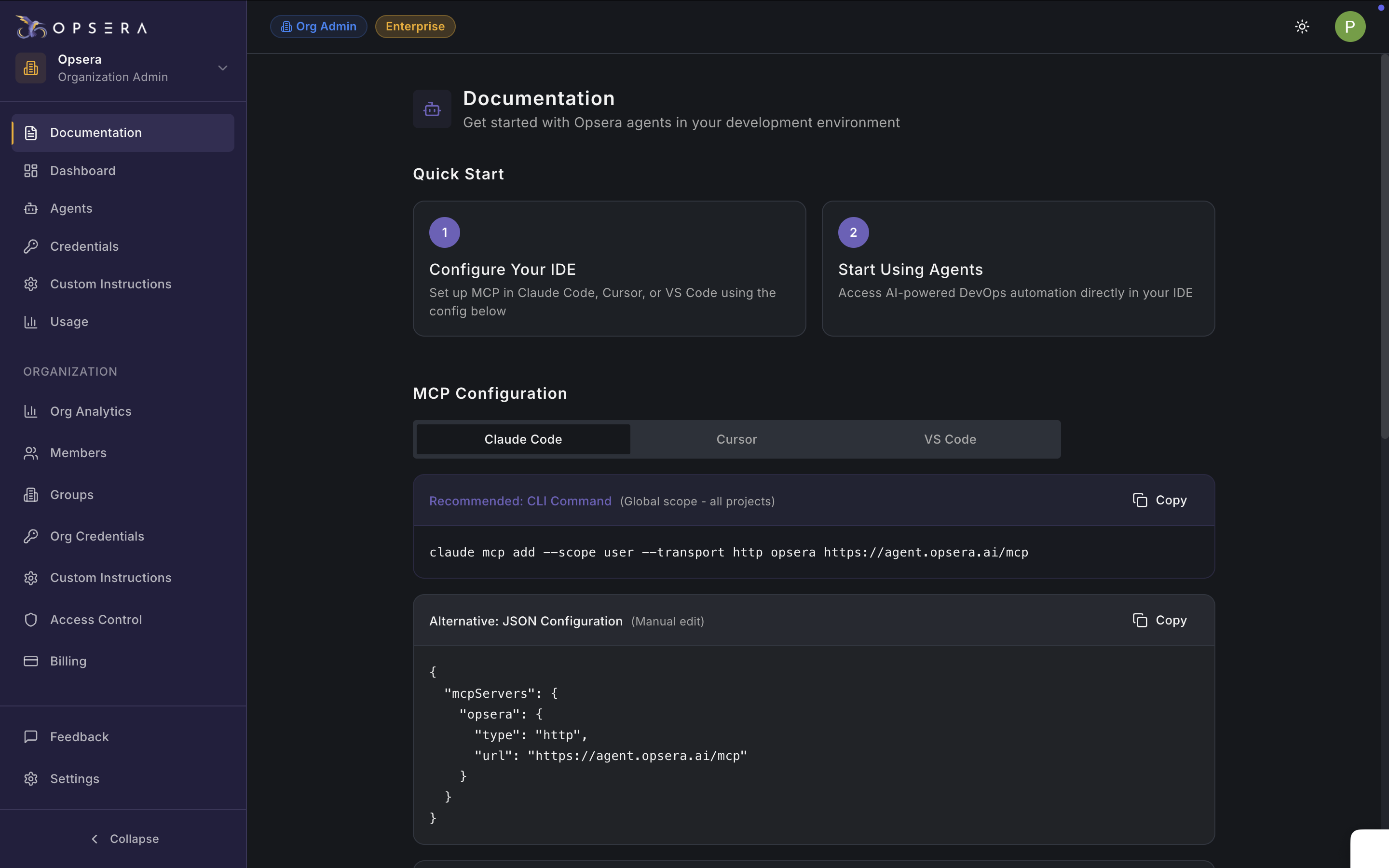
This screen helps users **get started quickly with Opsera AI Agents**, especially by configuring their local development environment to connect via MCP (Model Context Protocol).

{% hint style="info" %}
**Navigation & Organization Controls**

Provides role-based access and organizational governance.

**Organization Section**

Includes:

* Org Analytics
* Members
* Groups
* Org Credentials
* Access Control
* Billing

**Personal Section**

Includes:

* Documentation
* Dashboard
* Agents
* Credentials
* Custom Instructions
* Usage
* Settings
  {% endhint %}

### Key Sections

**Quick Start**

A two-step onboarding flow designed to reduce setup friction:

1. **Configure Your IDE**
   * Guides users to connect Opsera agents to their IDE (Claude Code, Cursor, or VS Code).
     * Learn here to get started with [Claude Code connection](https://docs.opsera.io/opsera-ai-agents/getting-started/terminal-setup-guide-for-claude)
     * Learn here to get started with [Cursor connection](https://docs.opsera.io/opsera-ai-agents/getting-started/terminal-setup-guide-for-cursor)
     * Learn here to get started with [VS Code connection](https://docs.opsera.io/opsera-ai-agents/getting-started/terminal-setup-guide-for-vs-code)
2. **Start Using Agents**
   * Once configured, users can invoke agents from their IDE using natural language commands.

**MCP Configuration**

This section provides two ways to configure MCP:

**Option 1: Recommended CLI Command**

* Best for most users
* Applies globally (all projects for the user)

Example:

```bash
claude mcp add --scope user --transport http opsera https://agent.opsera.ai/mcp
```

**What this does**

* Registers Opsera as an MCP server
* Enables secure HTTP-based communication between the IDE and Opsera agents

**Option 2: JSON Configuration (Manual)**

* For advanced users or restricted environments
* Allows manual editing of MCP config files

Key fields explained:

* `mcpsServers`: List of MCP providers
* `type`: Transport mechanism (HTTP)
* `url`: Opsera MCP endpoint

**Available Agents**

View the agents so users can immediately explore value.

Each agent card:

* Shows category (DevOps, Salesforce, Developer)
* Briefly explains the use case
* Links to detailed agent views

**Available Agents List**

Quick navigation shortcuts:

* **All Agents** – Browse the full catalog
* **Usage & Analytics** – Monitor adoption and performance
* **Settings** – Account-level configuration

### Dashboard Screen

<figure><img src="https://2796924801-files.gitbook.io/~/files/v0/b/gitbook-x-prod.appspot.com/o/spaces%2F86ukVuM3VfSjENMaWBPn%2Fuploads%2FCFgZfL0wp7713CnesYox%2FScreenshot%202026-02-09%20at%208.15.49%E2%80%AFPM.png?alt=media&#x26;token=6665dd5d-c72b-4905-8635-a12f3221fd1f" alt=""><figcaption></figcaption></figure>

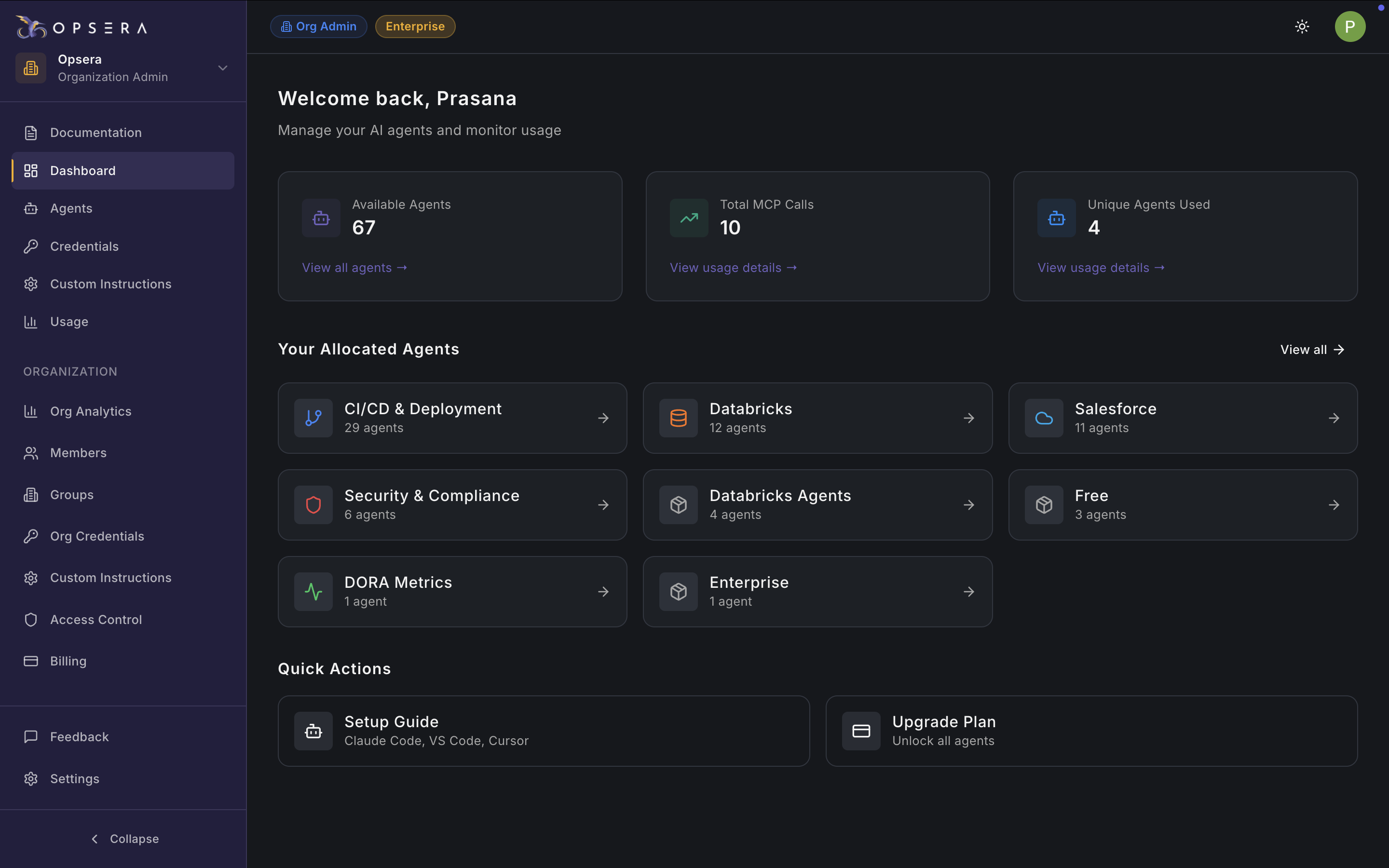
The Dashboard is the central command center for monitoring agents, usage, and allocations across your organization.

**Summary Cards**

* **Available Agents:** Total agents accessible under your plan
* **Total MCP Calls:** Total tool invocations across agents
* **Unique Agents Used:** Number of distinct agents actively used

**Your Allocated Agents**

Shows agents grouped by functional domains, helping users understand coverage.

<figure><img src="https://2796924801-files.gitbook.io/~/files/v0/b/gitbook-x-prod.appspot.com/o/spaces%2F86ukVuM3VfSjENMaWBPn%2Fuploads%2F3Na8M307zypScm9HgdhU%2FScreenshot%202026-02-09%20at%207.58.33%E2%80%AFPM.png?alt=media&#x26;token=19106647-bbfc-4674-929f-2db34e64bccd" alt=""><figcaption></figcaption></figure>

Each card:

* Displays number of agents
* Acts as a drill-down entry point

**Quick Actions**

Designed for common next steps:

* **Setup Guide** – IDE and MCP onboarding
* **Upgrade Plan** – Unlock additional agents or capabilities

### Credential Store Screen

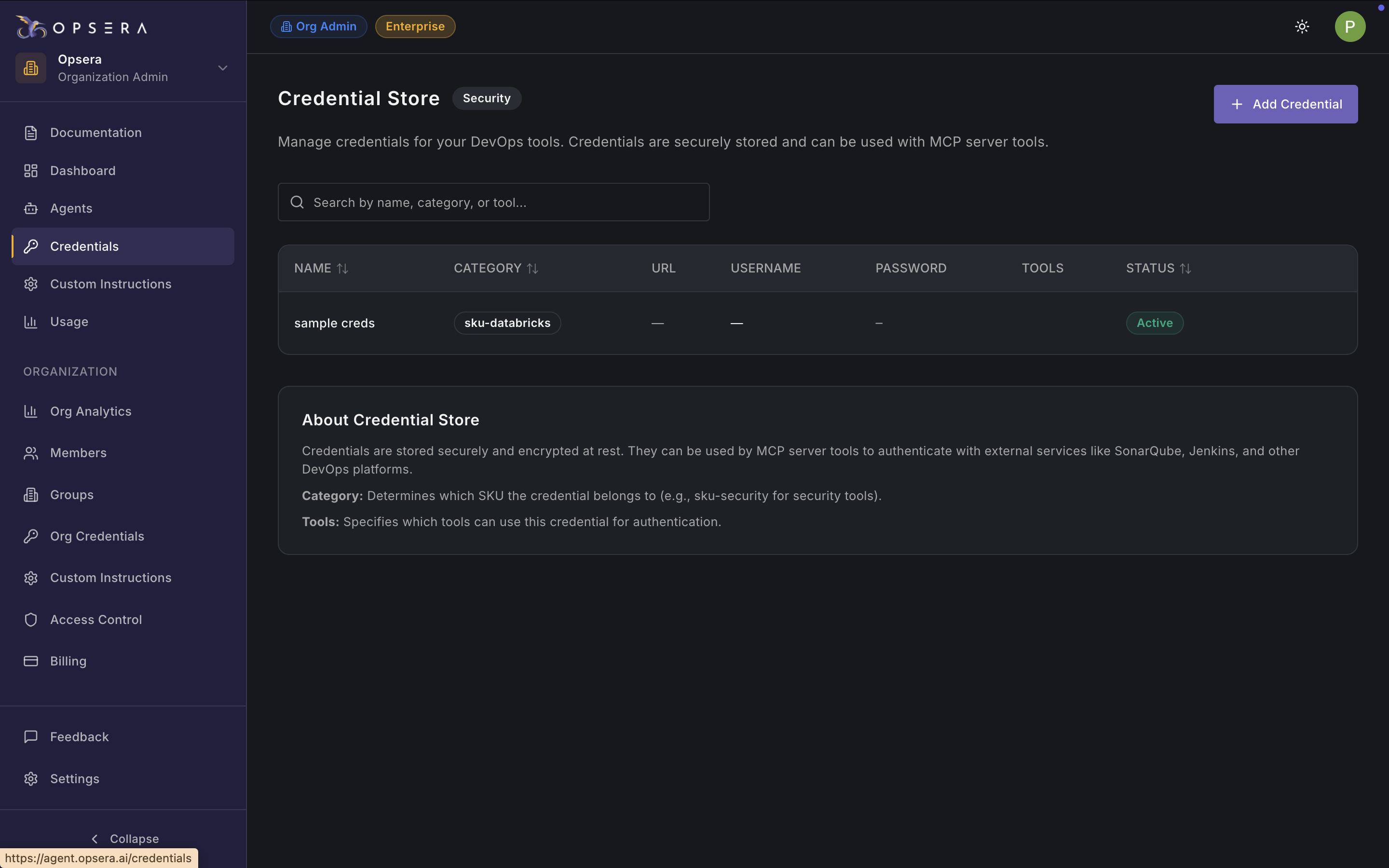
Provides a secure vault for managing credentials used by Opsera agents when integrating with external systems.

<figure><img src="https://2796924801-files.gitbook.io/~/files/v0/b/gitbook-x-prod.appspot.com/o/spaces%2F86ukVuM3VfSjENMaWBPn%2Fuploads%2FGRqoJknU3l5PlBemYv6q%2FScreenshot%202026-02-09%20at%207.58.41%E2%80%AFPM.png?alt=media&#x26;token=56e66492-1931-42c2-a607-f82299d84032" alt=""><figcaption></figcaption></figure>

**Credential Table**

Each credential entry includes:

* **Name** – Friendly identifier
* **Category** – SKU or functional grouping (e.g., Databricks, Security)
* **URL** – Target system endpoint
* **Username / Password** – Encrypted at rest
* **Tools** – Agents authorized to use the credential
* **Status** – Active / Inactive

**Add Credential**

The **Add Credential** action allows users to store secrets securely and associate credentials with specific tools.

To add a new credential:

1. Click the **+ Add Credential** button.
2. Choose the tupe

### Custom Instructions Screen

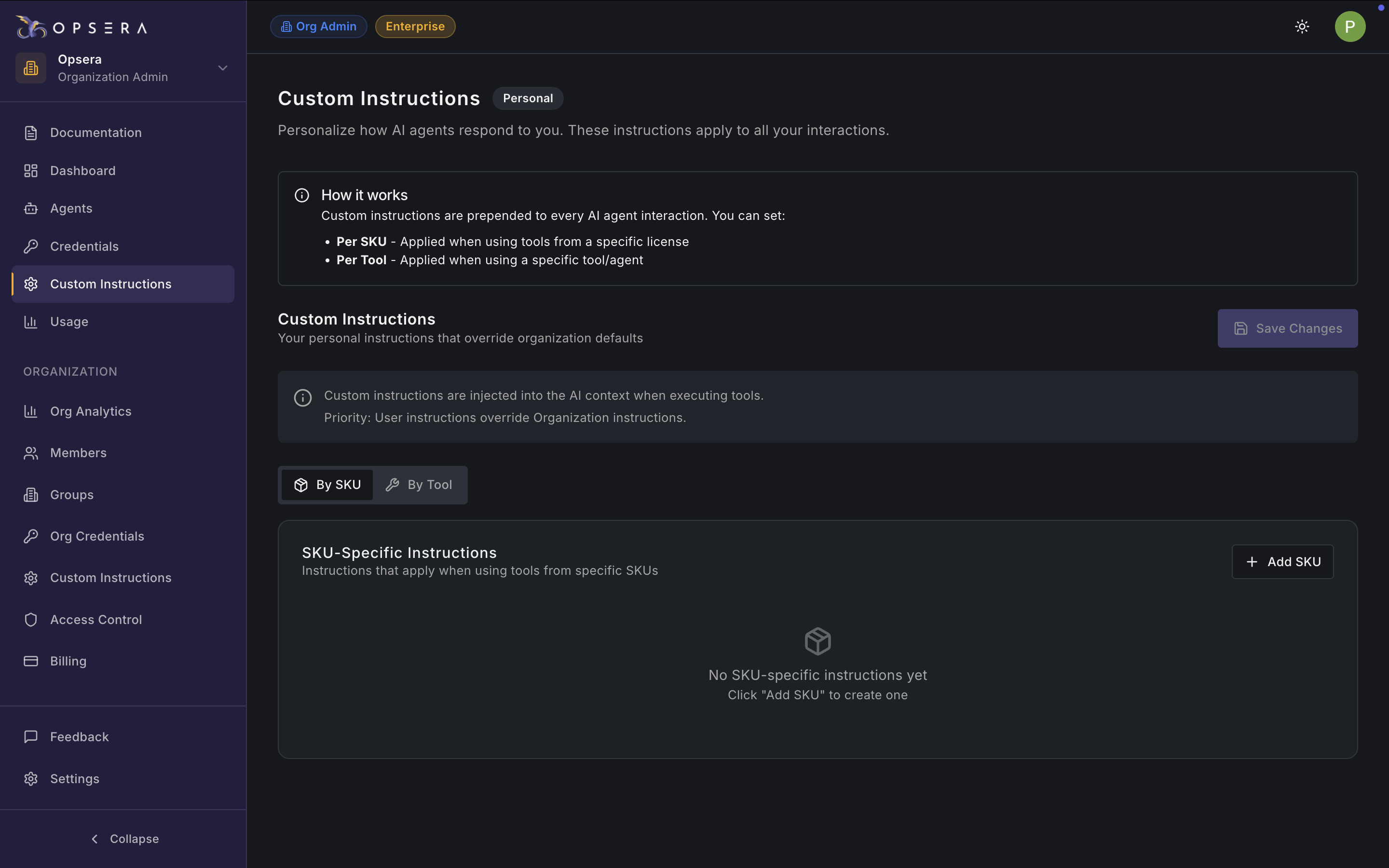
Allows users to control and personalize how AI agents behave during execution.

Instructions are injected into the AI context:

* Before agent execution
* Before tool calls
* With defined priority rules

<figure><img src="https://2796924801-files.gitbook.io/~/files/v0/b/gitbook-x-prod.appspot.com/o/spaces%2F86ukVuM3VfSjENMaWBPn%2Fuploads%2FF3BTK58qnot8y2YTC2Lw%2FScreenshot%202026-02-09%20at%207.58.50%E2%80%AFPM.png?alt=media&#x26;token=8e344383-4066-4143-9b16-2f9af073f725" alt=""><figcaption></figcaption></figure>

**Instruction Scope Options**

**By SKU**

* Applies instructions when tools from a specific license or product SKU are used
* Example: Security agents follow stricter compliance rules

**By Tool**

* Instructions apply only to a specific agent or tool
* Useful for fine-grained behavioral control

### Usage (My Usage) Screen

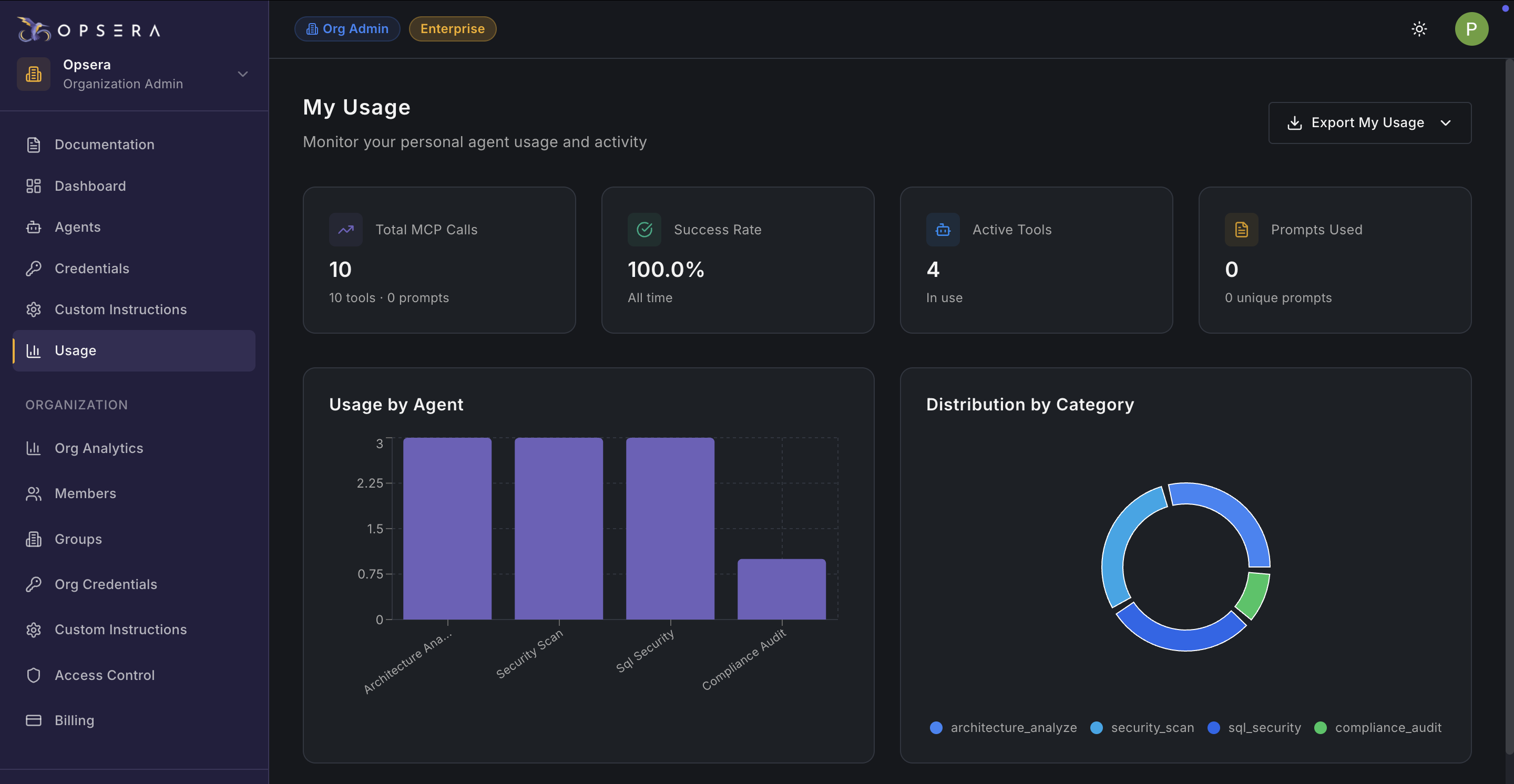
Gives individual users full visibility into how they are using Opsera agents.

<figure><img src="https://2796924801-files.gitbook.io/~/files/v0/b/gitbook-x-prod.appspot.com/o/spaces%2F86ukVuM3VfSjENMaWBPn%2Fuploads%2F9hdoqaKeasI1jOwiWE3V%2FScreenshot%202026-02-09%20at%207.59.00%E2%80%AFPM.png?alt=media&#x26;token=6f97163a-0021-4498-8e51-3aa5c777abc7" alt=""><figcaption></figcaption></figure>

<table data-header-hidden><thead><tr><th width="176.82513427734375"></th><th></th><th></th></tr></thead><tbody><tr><td><strong>Section</strong></td><td><strong>Description</strong></td><td><strong>Why It Matters</strong></td></tr><tr><td><strong>Summary Metrics</strong></td><td>Total number of tool invocations across all agents</td><td>Measures overall platform usage and adoption</td></tr><tr><td></td><td>Percentage of successful tool executions</td><td>Indicates execution reliability and system health</td></tr><tr><td></td><td>Number of tools currently in use</td><td>Shows breadth of agent adoption</td></tr><tr><td></td><td>Count of unique prompts executed</td><td>Helps understand usage diversity</td></tr><tr><td><strong>Usage by Agent</strong> (Bar Chart)</td><td>Visualizes how often each agent is used</td><td>Identifies heavily used vs underused agents</td></tr><tr><td></td><td>Side-by-side usage comparison across agents</td><td>Highlights optimization or enablement opportunities</td></tr><tr><td><strong>Distribution by Category</strong></td><td>Usage related to architecture and design analysis</td><td>Tracks strategic planning and design automation</td></tr><tr><td></td><td>Usage of security-focused agents</td><td>Measures security automation adoption</td></tr><tr><td></td><td>Usage of database and SQL security tools</td><td>Identifies database risk management activity</td></tr><tr><td></td><td>Usage of compliance and audit agents</td><td>Supports governance and compliance tracking</td></tr><tr><td><strong>Detailed Tool Table</strong></td><td>Number of times each tool was executed</td><td>Shows tool demand and frequency</td></tr><tr><td></td><td>Execution success percentage per tool</td><td>Helps diagnose reliability issues</td></tr><tr><td></td><td>Average time taken per execution</td><td>Identifies performance bottlenecks</td></tr><tr><td></td><td>Most recent execution timestamp</td><td>Highlights stale or unused tools</td></tr><tr><td><strong>Operational Insights</strong></td><td>Uses execution data to detect issues</td><td>Improves tool reliability and tuning</td></tr><tr><td></td><td>Correlates usage with business value</td><td>Supports leadership reporting</td></tr><tr><td></td><td>Identifies candidates for deeper automation</td><td>Guides future optimization efforts</td></tr></tbody></table>

### Org Analytics

<figure><img src="https://2796924801-files.gitbook.io/~/files/v0/b/gitbook-x-prod.appspot.com/o/spaces%2F86ukVuM3VfSjENMaWBPn%2Fuploads%2F58CYIFRwUb4pslLU5MVV%2FScreenshot%202026-02-09%20at%208.10.27%E2%80%AFPM.png?alt=media&#x26;token=94a5f3eb-e4f0-4284-871b-f3c274a64444" alt="" width="563"><figcaption></figcaption></figure>

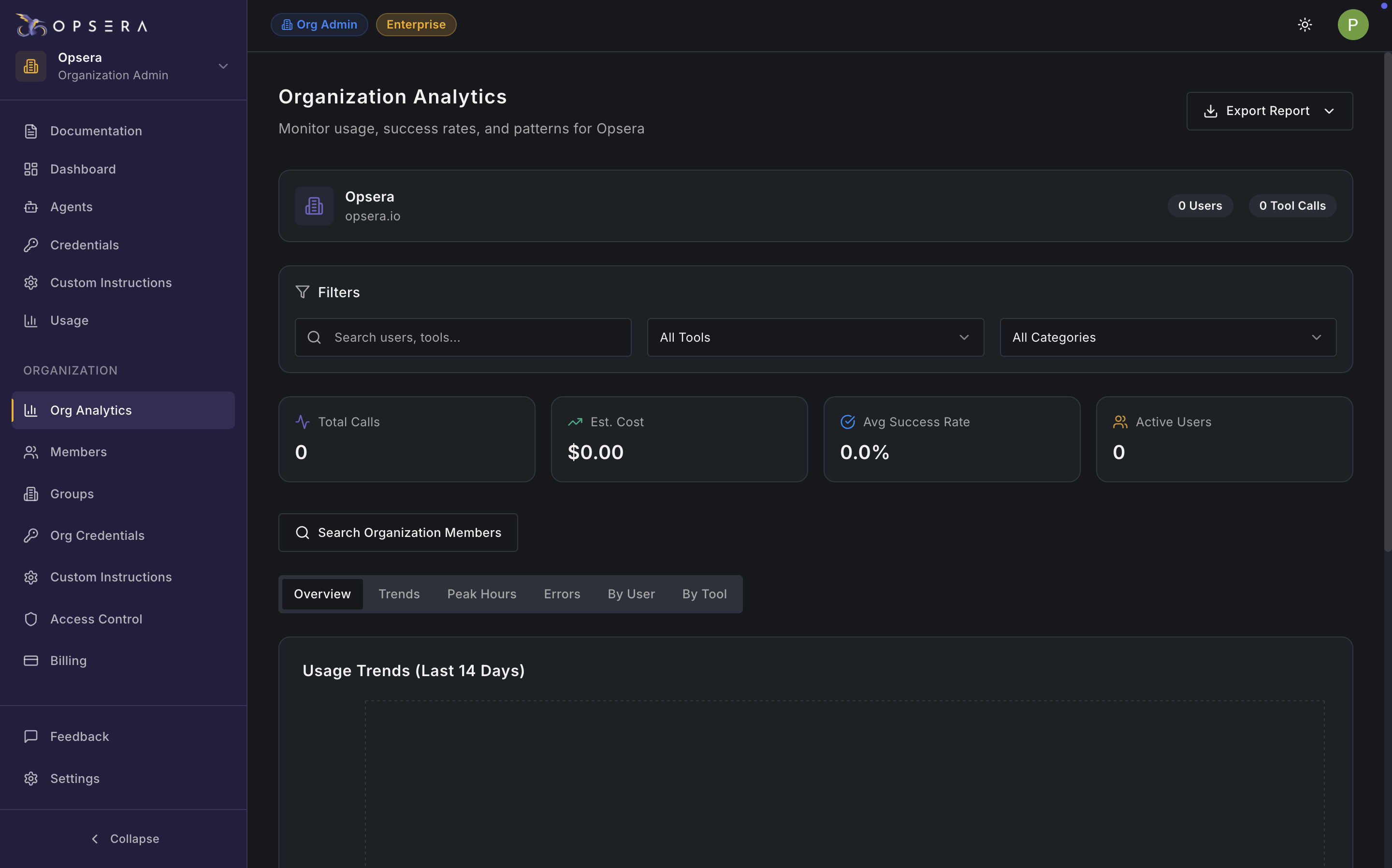
The Org Analytics tab provides organization administrators with a centralized view of AI agent adoption, usage patterns, and operational impact across teams, users, and tool categories.

{% hint style="info" %}
**Note:**

This page is designed to answer key questions such as:

* Who is using Opsera agents?
* Which agents deliver the most value?
* How adoption varies across teams and SKUs
* Where optimization or expansion opportunities exist
  {% endhint %}

**Organization Summary Metrics**

* **Total MCP Calls**: Represents the total number of MCP tool executions across the organization. Includes all users, agents, and teams.
* **Active Users**: Number of unique users who have invoked at least one agent.
* **Active Agents**: Count of unique agents used across the organization
* **Success Rate**: Percentage of successful tool executions

#### Usage Trends

**Usage Over Time**

A time-series view showing:

* MCP calls per day, week, or month
* Option to filter by user, team, SKU, or agent

**Use cases**

* Track adoption after rollout
* Measure impact of training or enablement sessions
* Spot usage spikes or drops

#### Usage by Team / Group

Displays usage aggregated by:

* Organizational groups
* Departments or squads

#### Usage by User

Shows individual user activity:

* MCP calls per user
* Agents used
* Last activity date

#### Usage by Agent

Breaks down:

* How often each agent is invoked
* Success rates per agent
* Average execution time

#### Usage by SKU / Category

Groups usage by product SKU or functional area such as:

* CI/CD
* Security & Compliance
* Data Platforms
* Salesforce
* Enterprise tools

#### Filters & Controls

**Time Range Selector**

* Filter analytics by custom or predefined ranges
  * Last 7 days
  * Last 30 days
  * Custom date range

**Export Analytics**

Admins can export analytics data for:

* CSV
* Excel
* Internal reporting
* Executive summaries

### Organization Members

<figure><img src="https://2796924801-files.gitbook.io/~/files/v0/b/gitbook-x-prod.appspot.com/o/spaces%2F86ukVuM3VfSjENMaWBPn%2Fuploads%2FxJ9XCffKjqsywV8PdhxJ%2FScreenshot%202026-02-09%20at%208.15.14%E2%80%AFPM.png?alt=media&#x26;token=a8390cb2-8f08-4f2e-88aa-43572eee3f64" alt=""><figcaption></figcaption></figure>

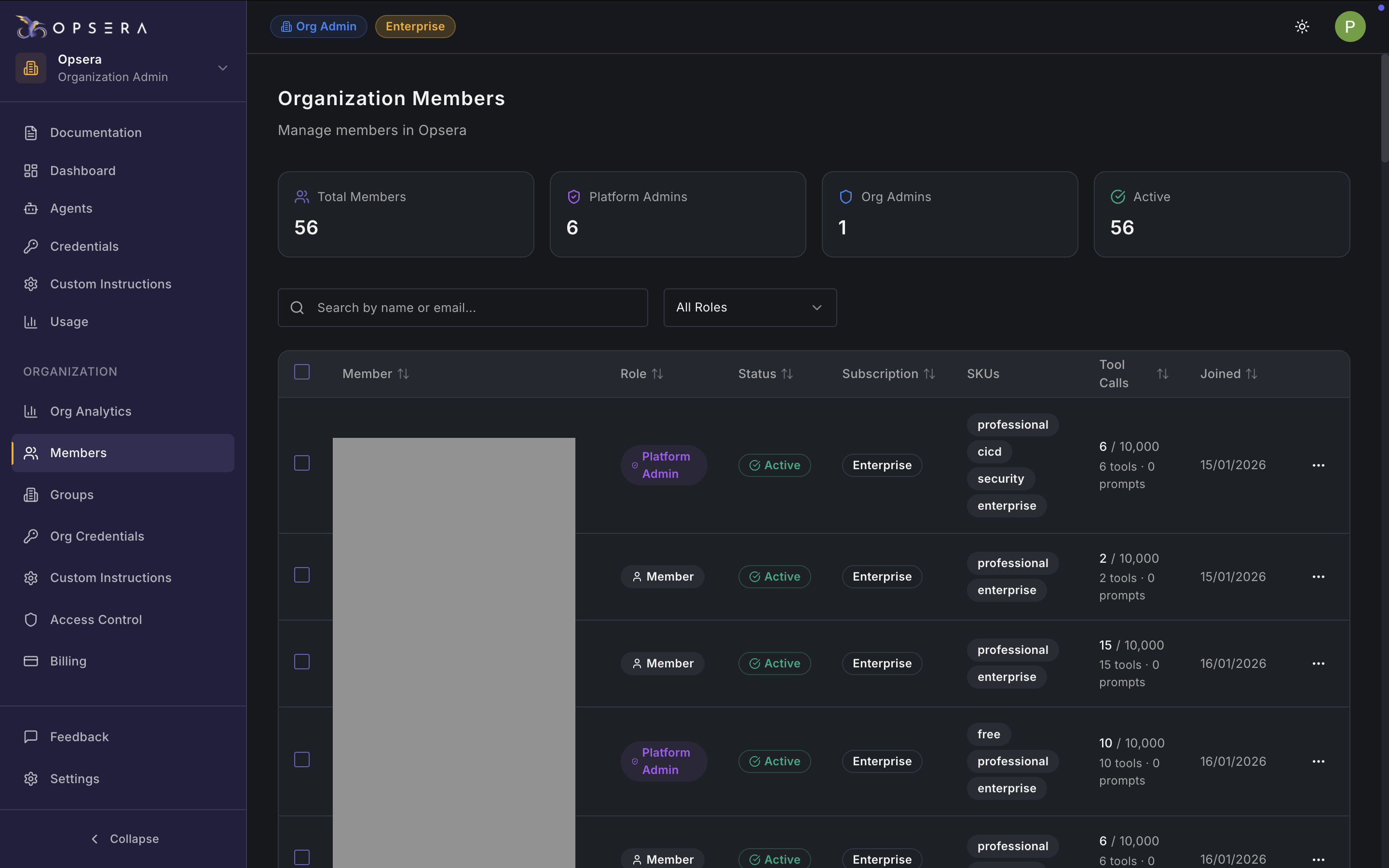
The Organization Members page allows organization administrators to manage users, roles, subscriptions, SKUs, and activity across the Opsera platform. This page acts as the central identity and entitlement management hub for your organization.

#### Summary Metrics

* **Total Members**: Total number of users added to the organization
* **Platform Admins**: Users with full platform-level administrative privileges
* **Org Admins**: Users with organization-level administrative access
* **Active**: Number of users currently active and enabled

**Member Search & Filters**

* Search by name or email to quickly locate users
* Role filter to view users by role (Admin, Member, etc.)

#### Members Table

Each row represents a single user with the following details:

* Member: User identity (name/email)
* Role: Defines permissions:
  * **Platform Admin** – Full platform control
  * **Org Admin** – Organization-level management
  * **Member** – Standard usage access
* Status
  * **Active** – User can access the platform
  * **Inactive** – User access is disabled
* **Subscription**: Indicates the subscription tier (e.g., Enterprise)
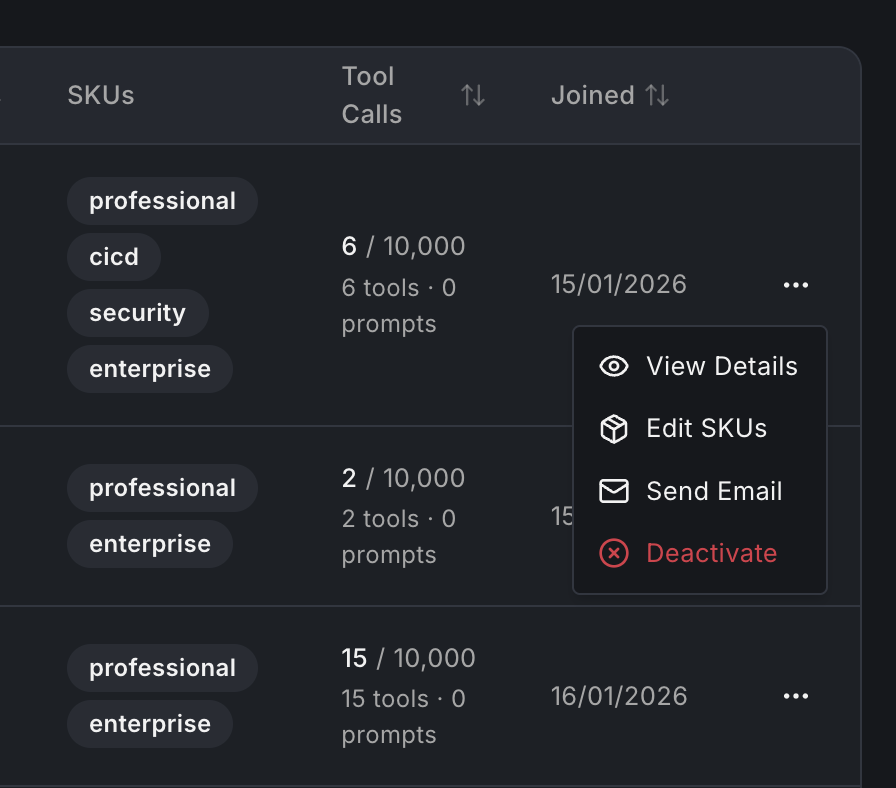
* **SKUs**: Lists product SKUs assigned to the user. These SKUs determine which agents and tools the user can access.
* **Tool Calls**: Displays tool usage relative to quota. Shows the Number of tools used and the Prompt usage
* **Joined**: Date the user joined the organization

#### Member Actions (⋮ Menu)

<figure><img src="https://2796924801-files.gitbook.io/~/files/v0/b/gitbook-x-prod.appspot.com/o/spaces%2F86ukVuM3VfSjENMaWBPn%2Fuploads%2FoqSHuWQ55IRiJBzbQ1u2%2FScreenshot%202026-02-09%20at%208.15.39%E2%80%AFPM.png?alt=media&#x26;token=3cc19e38-6ddb-475c-9737-7fea37deed1c" alt="" width="375"><figcaption></figcaption></figure>

Available per user:

* **View Details** – Detailed activity and access overview
* **Edit SKUs** – Modify assigned SKUs
* **Send Email** – Contact the user directly
* **Deactivate** – Disable user access

### Groups

<figure><img src="https://2796924801-files.gitbook.io/~/files/v0/b/gitbook-x-prod.appspot.com/o/spaces%2F86ukVuM3VfSjENMaWBPn%2Fuploads%2FZoqFnkRDYumLjhabc0vL%2FScreenshot%202026-02-09%20at%208.15.49%E2%80%AFPM.png?alt=media&#x26;token=be16fa36-5496-4ec8-acc2-c66742f13f7f" alt=""><figcaption></figcaption></figure>

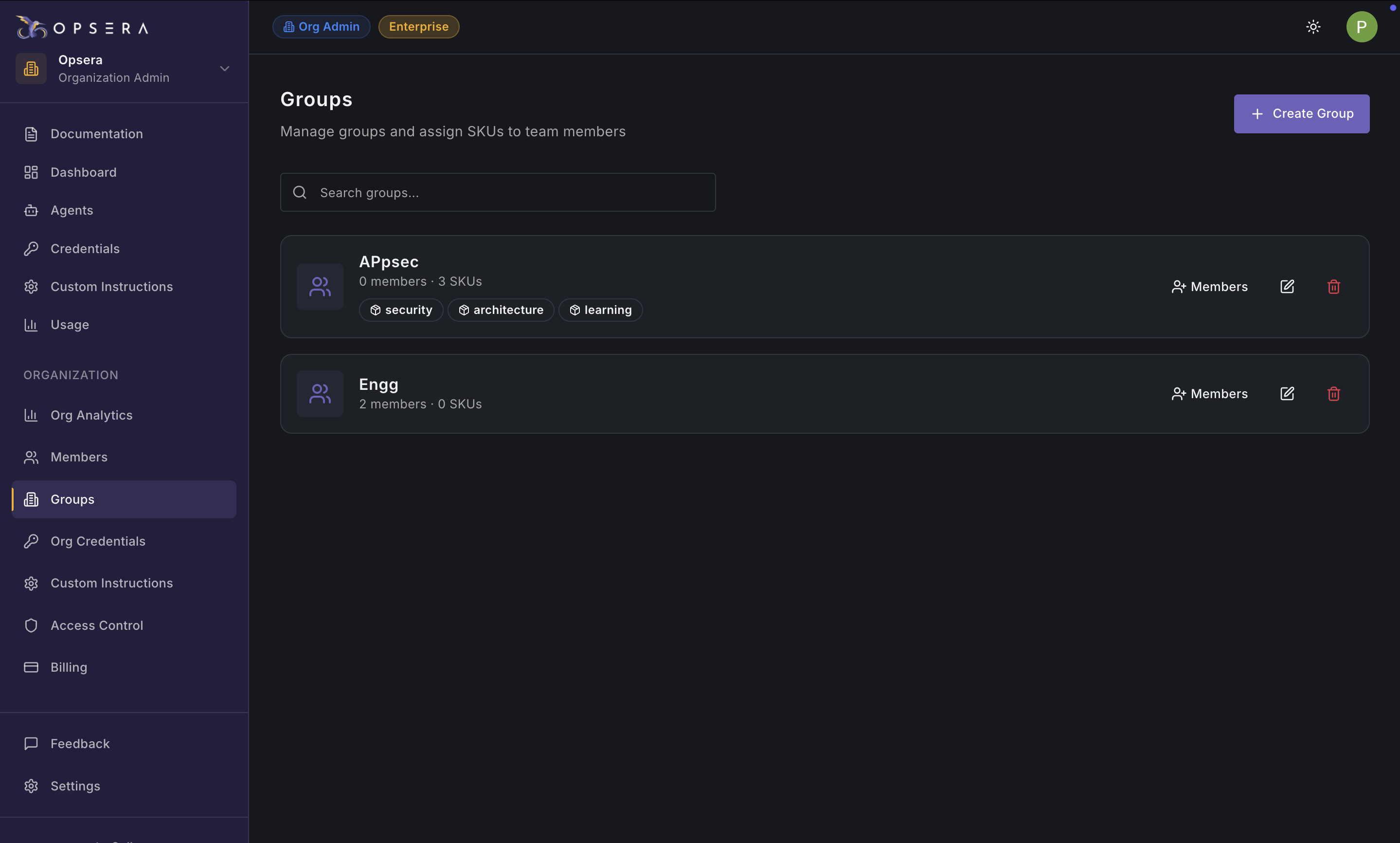
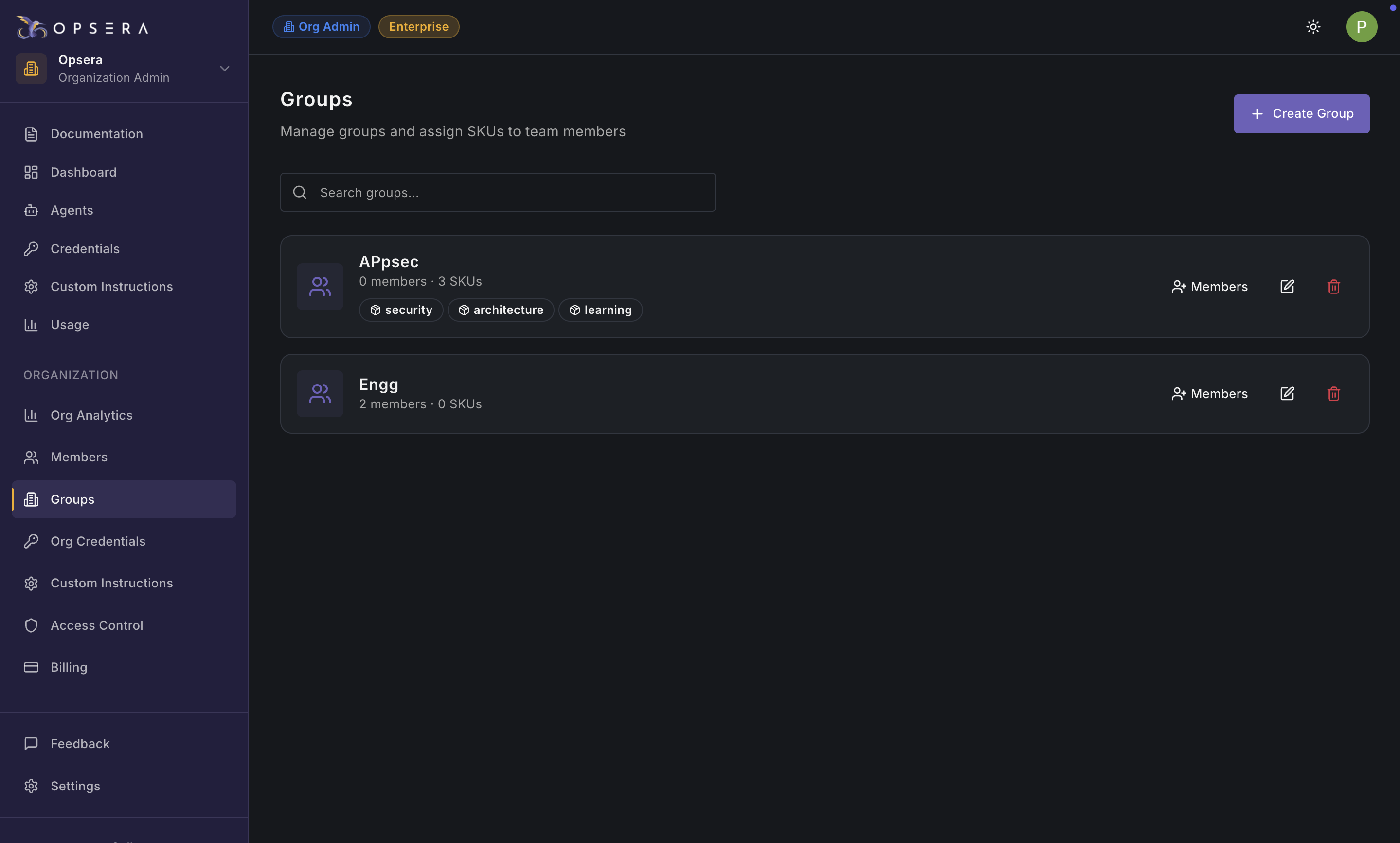
The Groups page allows administrators to organize users into teams and assign SKUs at a group level.

* A **Group** represents a team, department, or function
* SKUs assigned to a group are inherited by its members
* Users can belong to multiple groups

#### Groups List

Each group card displays:

* Group Name
* Members Count
* SKUs (SKUs granted via the group)

#### Group Actions

Icons on each group card allow admins to:

* **Manage Members** – Add or remove users
* **Edit Group** – Update name, description, or SKUs
* **Delete Group** – Remove the group (does not delete users)

**Create New Group**

The Create New Group dialog allows admins to create a group and define default SKU access for its members.

To create a new group:

1. Click + New Group.
2. Fill in the following fields:
   1. Group Name
   2. Description (Optional)
   3. SKUs: Select one or more SKUs to assign to all group members
   4. Set as Default Group for New Users: Check this box to automatically assigns new users to this group

### Organization Credentials

<figure><img src="https://2796924801-files.gitbook.io/~/files/v0/b/gitbook-x-prod.appspot.com/o/spaces%2F86ukVuM3VfSjENMaWBPn%2Fuploads%2FnPRHNqHhWWZYgMSRI9qp%2Fimage.png?alt=media&#x26;token=503a4c90-4273-402a-bb06-9493061f3bf2" alt=""><figcaption></figcaption></figure>

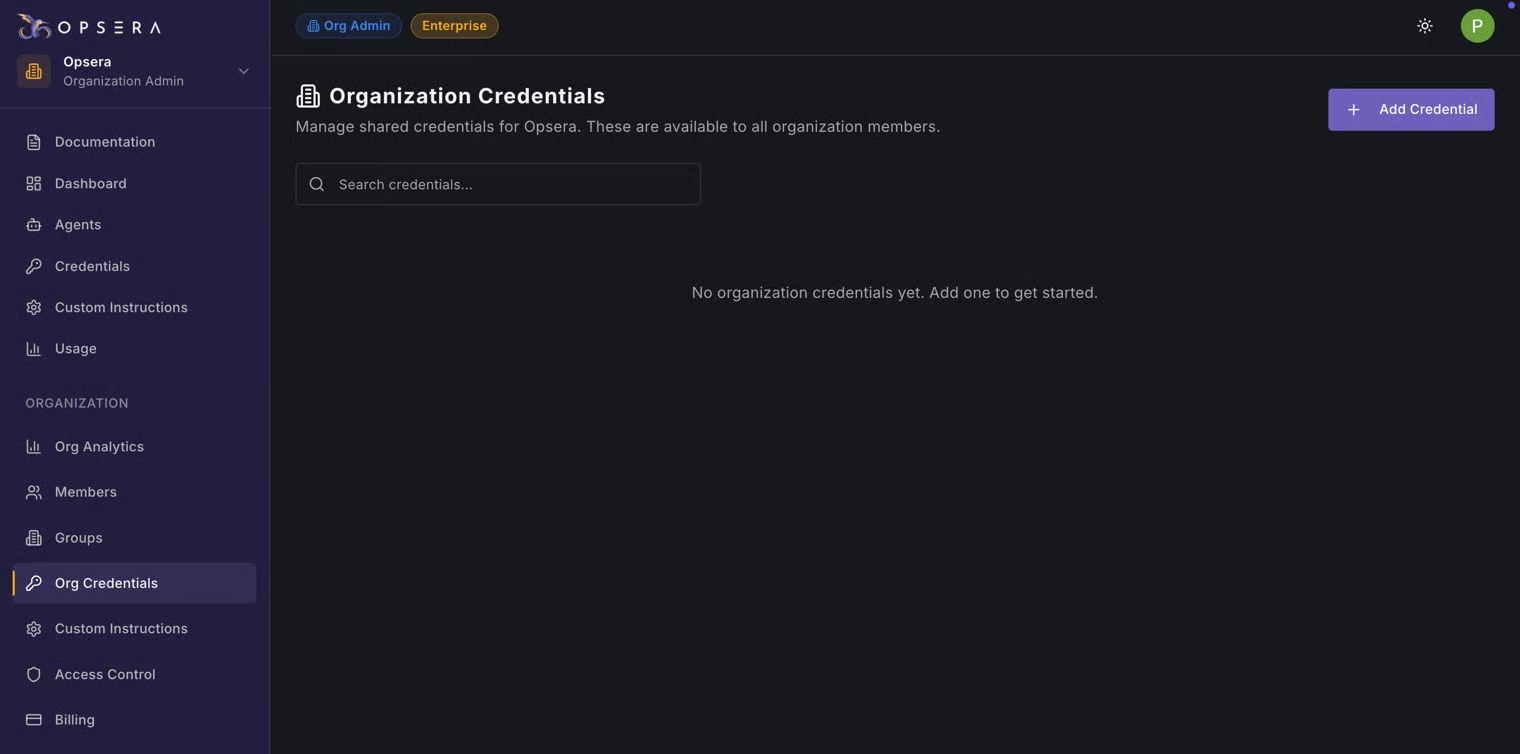
The Organization Credentials page manages shared credentials that are available to all users in the organization. These credentials are commonly used by AI agents when integrating with external DevOps tools.

**Key Characteristics**

* Shared across the organization
* Securely encrypted at rest
* Centrally managed by admins
* Reduces duplicate credential creation

**Credential List**

When credentials exist, this page displays:

* Credential name
* Category (SKU)
* Associated tools
* Status

If no credentials exist, users are prompted to add one.

**Add Credential**

Use the Add Credential button to store a new shared credential.

Admins can securely create and store credentials for DevOps tools used by Opsera agents:

1. Enter a name.
2. Under Category (SKU), determine which tools can use the credential

* Examples:
  * Security
  * CI/CD
  * Databricks

3. URL: Endpoint of the external service

* Example: `https://sonarqube.example.com`

4. Username: Username or API key name (if applicable)
5. Password / Token: Password or API token
6. Select which tools can access this credential. Filtered based on selected SKU

### Organization Custom Instructions

<figure><img src="https://2796924801-files.gitbook.io/~/files/v0/b/gitbook-x-prod.appspot.com/o/spaces%2F86ukVuM3VfSjENMaWBPn%2Fuploads%2FiYEJez943qb4GrrnuZHC%2FScreenshot%202026-02-09%20at%208.16.16%E2%80%AFPM.png?alt=media&#x26;token=f4b66d13-028f-486d-adc4-e4fcc69bbd05" alt=""><figcaption></figcaption></figure>

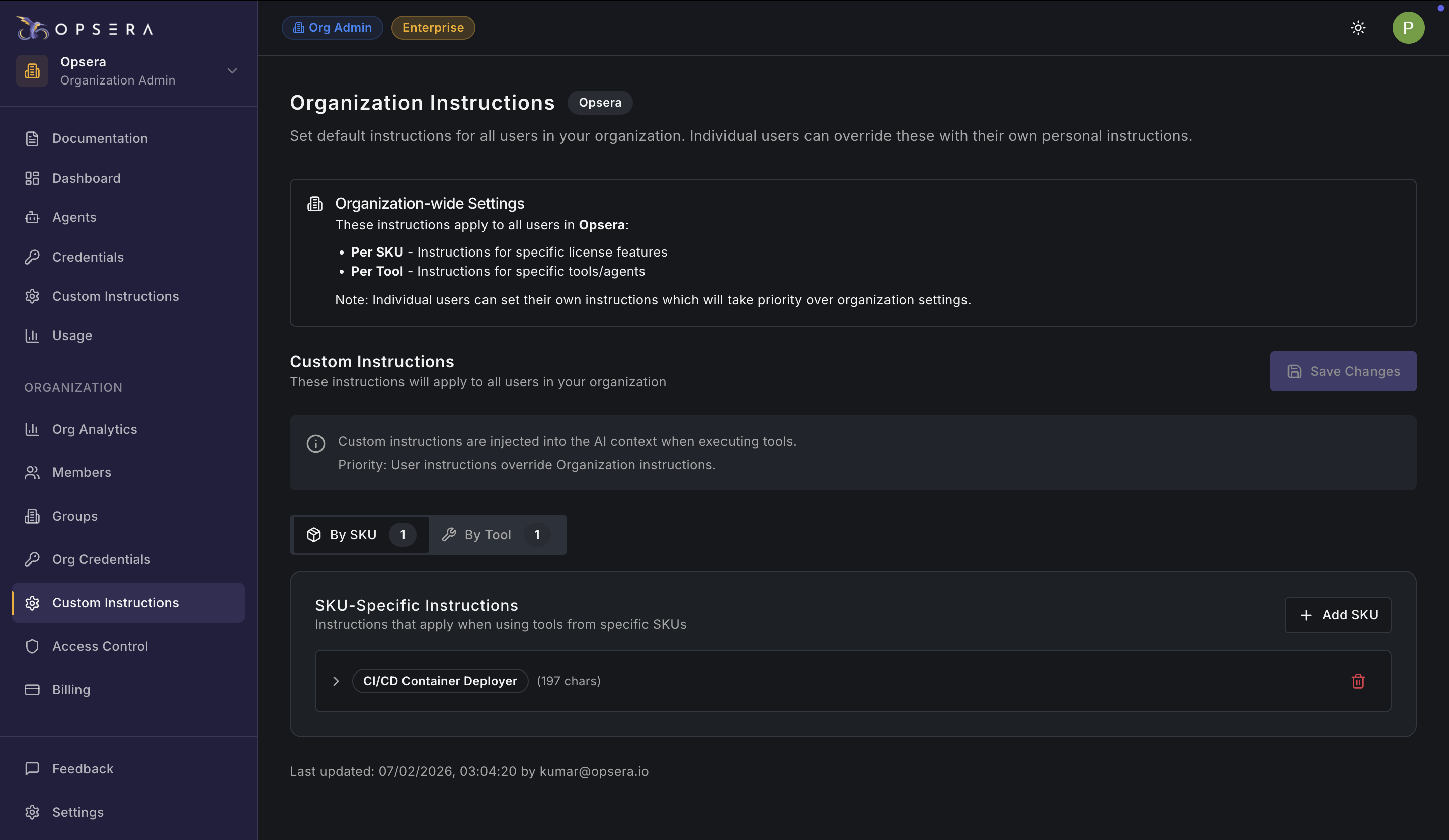
The Organization Custom Instructions page allows admins to define default AI behavior for all users in the organization. These instructions ensure consistency, governance, and compliance across AI agent usage.

**How Instructions Work**

* Injected into the AI context during tool execution
* Apply organization-wide
* Can be overridden by individual user instructions

**Instruction Scope**

* By SKU: Applies when tools from a specific SKU are used
* Example: CI/CD tools must follow deployment approval rules
* By Tool: Applies to specific agents or tools
* Example: Security scans must produce audit-friendly output

**SKU-Specific Instructions**

Each entry is tied to a SKU (e.g., CI/CD Container Deployer). Contains custom guidance text. Can be edited or deleted

Audit Information Shows last updated timestamp. Displays the admin who made the change

### Access Control

<figure><img src="https://2796924801-files.gitbook.io/~/files/v0/b/gitbook-x-prod.appspot.com/o/spaces%2F86ukVuM3VfSjENMaWBPn%2Fuploads%2FdcclrgSE8zLSO8Pep3pN%2FScreenshot%202026-02-09%20at%208.19.11%E2%80%AFPM.png?alt=media&#x26;token=7bab6882-5719-41b5-af1b-bfadc8633f01" alt=""><figcaption></figcaption></figure>

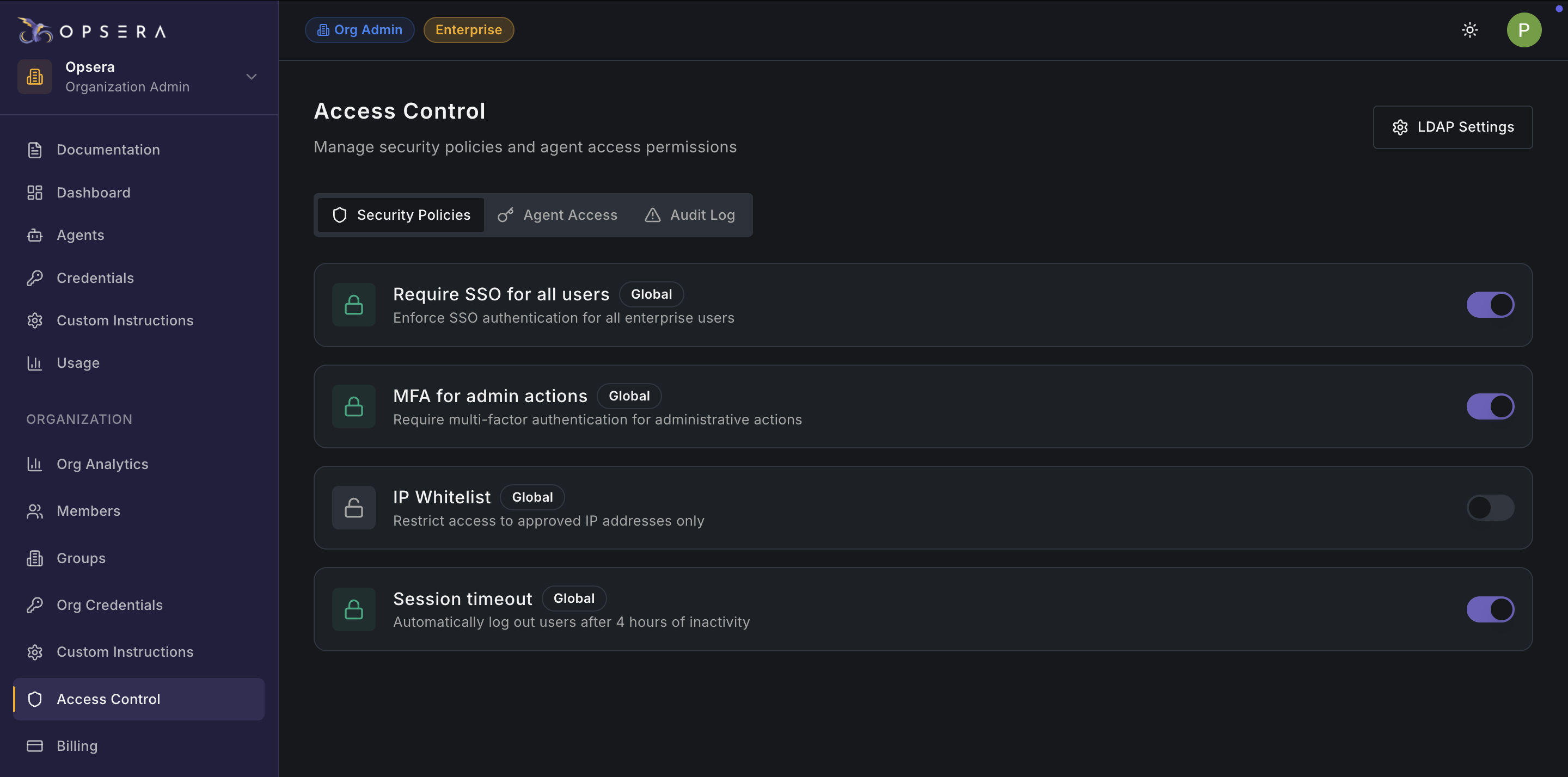
The Access Control section allows organization administrators to define security policies, control agent availability, and audit security-related events across the Opsera platform.

This area is critical for:

* Enterprise security compliance
* Controlled AI adoption
* Audit readiness

Only Org Admins and Platform Admins can manage these settings.

#### Access Control Tabs

**Security Policies**

Security Policies define organization-wide authentication and session rules that apply to all users. These policies help enforce enterprise security standards and reduce risk.

Available Policies:

**Require SSO for All Users (Global)**

* Forces all users to authenticate using Single Sign-On
* Prevents password-based logins

**Recommended for**

* Enterprise deployments
* SOC2, ISO, and internal compliance requirements

**MFA for Admin Actions (Global)**

* Requires multi-factor authentication for sensitive administrative operations

**IP Whitelist (Global)**

* Restricts platform access to approved IP address ranges
* Blocks login attempts from unauthorized networks

**Session Timeout (Global)**

* Automatically logs users out after a defined period of inactivity
* Reduces risk from unattended sessions

#### Agent Access

<figure><img src="https://2796924801-files.gitbook.io/~/files/v0/b/gitbook-x-prod.appspot.com/o/spaces%2F86ukVuM3VfSjENMaWBPn%2Fuploads%2FEqtveiPibNM44BeEAOC5%2FScreenshot%202026-02-09%20at%208.19.18%E2%80%AFPM.png?alt=media&#x26;token=ce9bbe35-9873-48dc-a2b8-727d29e600a9" alt="" width="563"><figcaption></figcaption></figure>

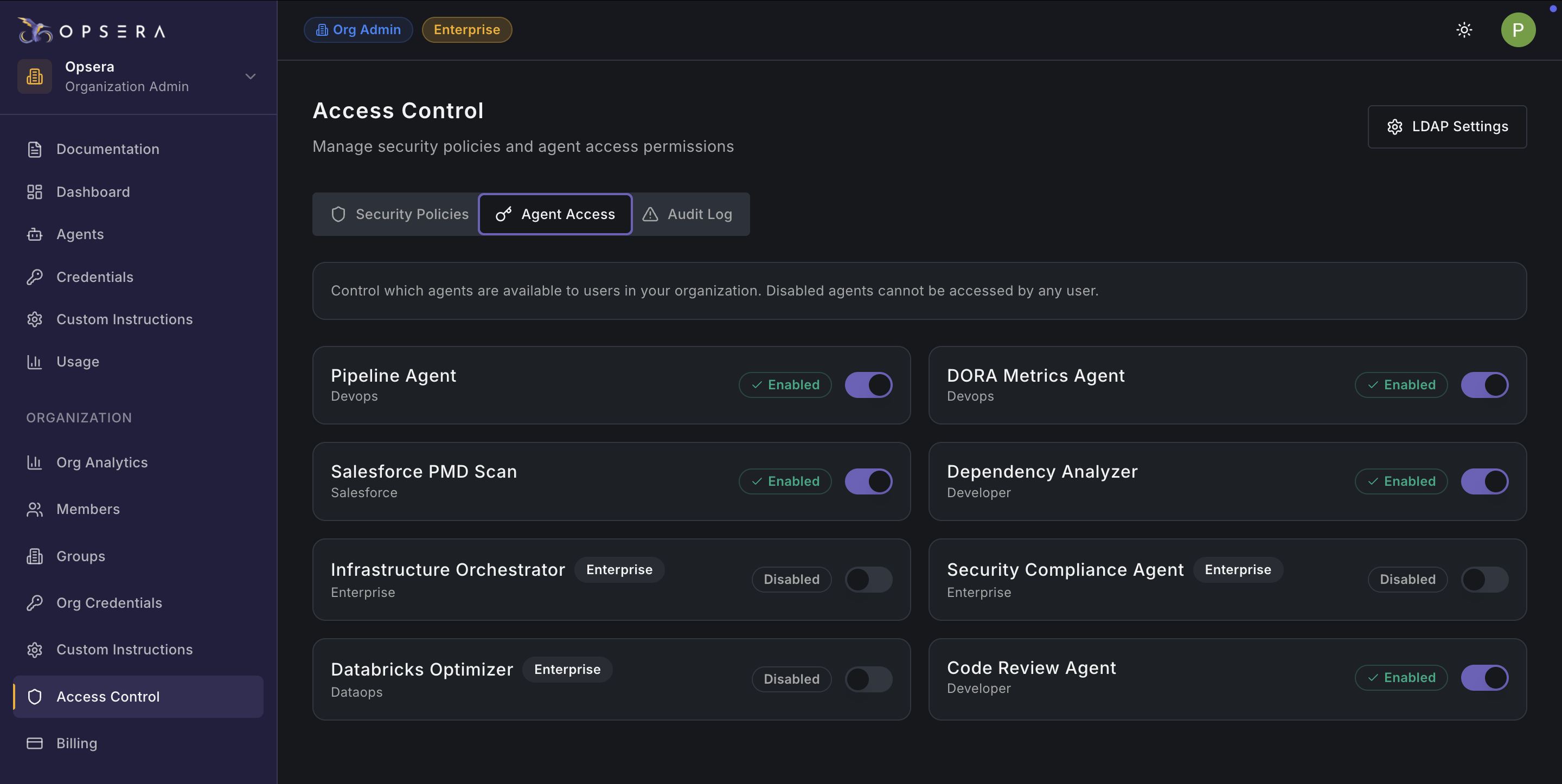
The Agent Access tab controls which AI agents are available to users in the organization.

**Enabling or Disabling Agents**

* Toggle **ON** to allow usage across the organization
* Toggle **OFF** to fully block access

#### Audit Log

<figure><img src="https://2796924801-files.gitbook.io/~/files/v0/b/gitbook-x-prod.appspot.com/o/spaces%2F86ukVuM3VfSjENMaWBPn%2Fuploads%2FHyt3RcmVDssoEe86RbO7%2FScreenshot%202026-02-09%20at%208.19.26%E2%80%AFPM.png?alt=media&#x26;token=da786d40-afe5-47e8-a328-d57b9c927a97" alt=""><figcaption></figcaption></figure>

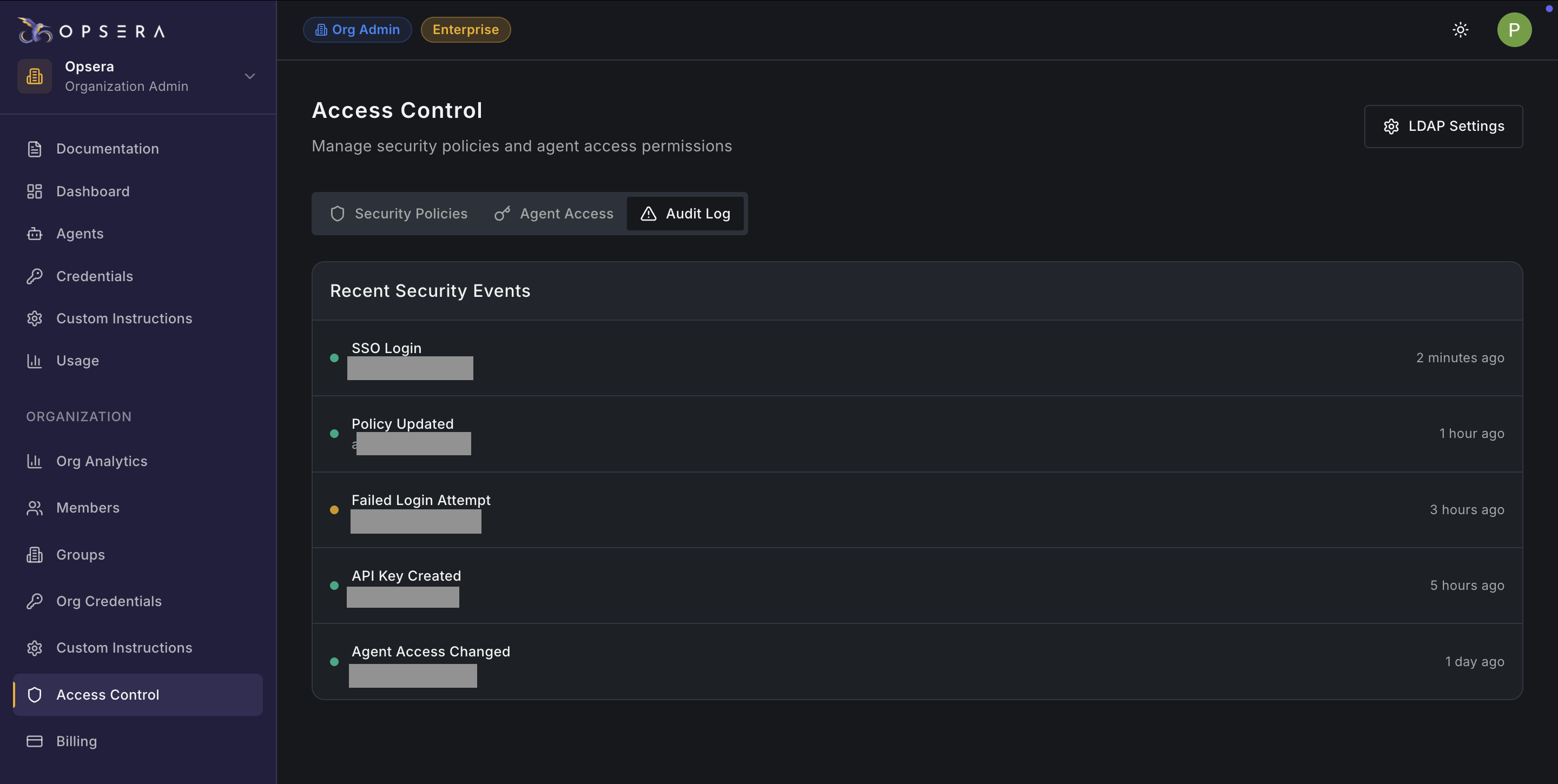
The Audit Log provides a chronological record of security-related events across the organization. This supports compliance audits, security investigations and Internal governance reviews.

Examples include:

* SSO login events
* Failed login attempts
* Policy changes
* API key creation
* Agent access changes

### Billing

<figure><img src="https://2796924801-files.gitbook.io/~/files/v0/b/gitbook-x-prod.appspot.com/o/spaces%2F86ukVuM3VfSjENMaWBPn%2Fuploads%2FTwRsdnKUvVHMcVwOmb8S%2FScreenshot%202026-02-09%20at%208.20.27%E2%80%AFPM.png?alt=media&#x26;token=7d2dc92e-d3f0-4821-92ec-75071e648020" alt=""><figcaption></figcaption></figure>

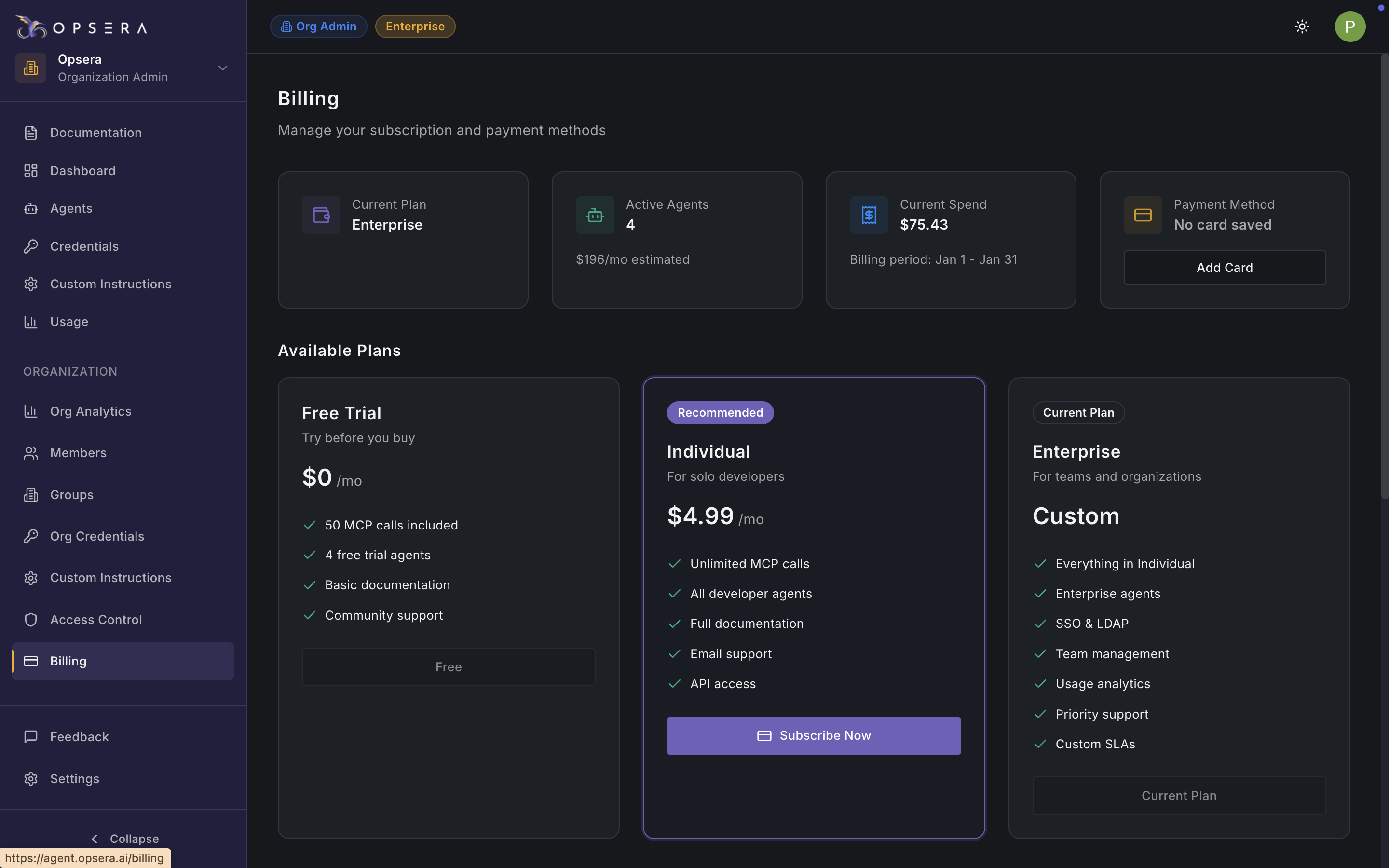
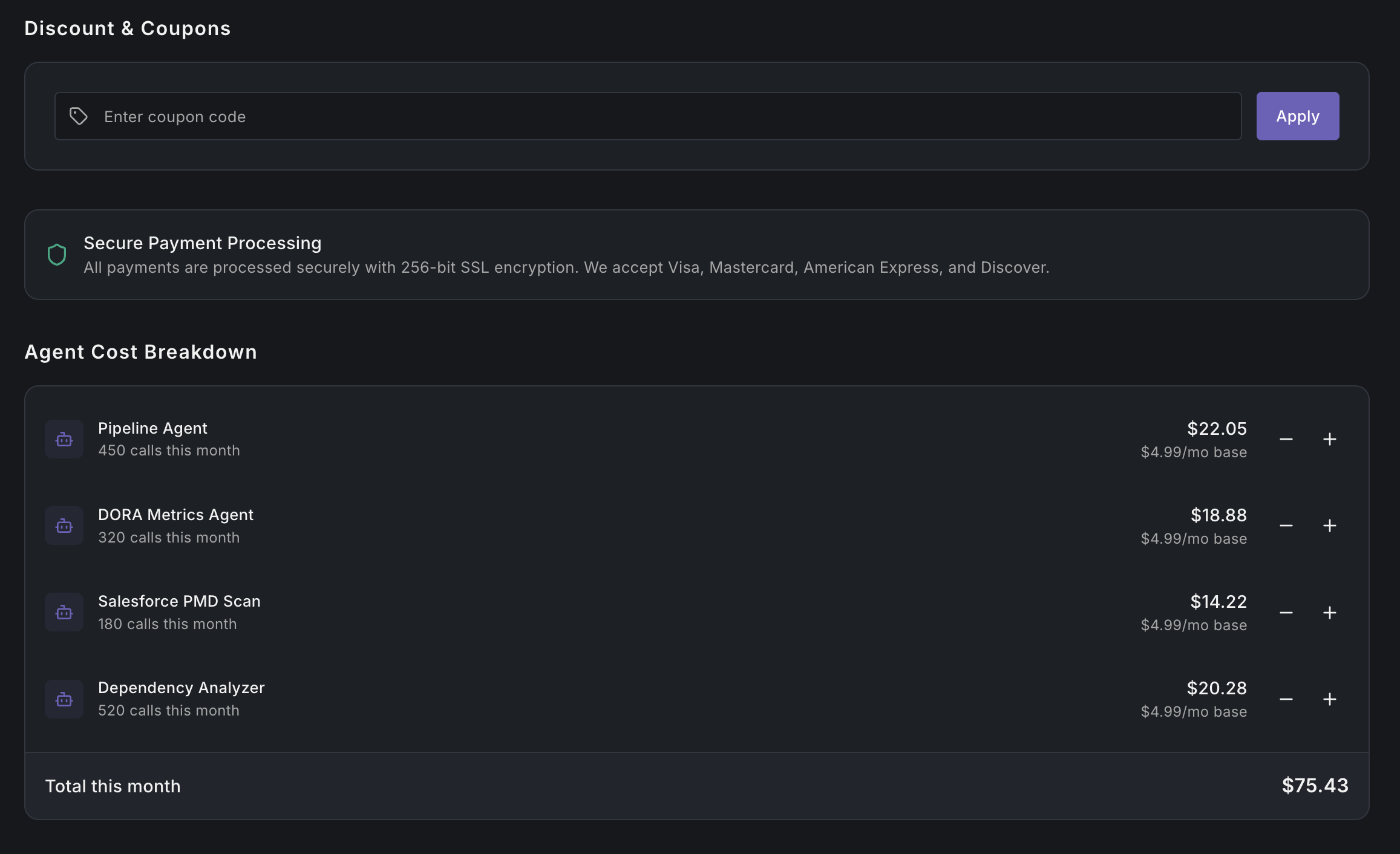
The Billing page allows administrators to manage subscription plans, monitor costs, apply discounts, and review detailed usage-based charges.

**Billing Summary**

* Current Plan: Displays the active subscription (e.g., Enterprise)
* Active Agents: Number of agents currently enabled and contributing to cost
* Current Spend: Accumulated spend for the current billing period
* Payment Method: Indicates whether a payment method is on file

#### Discounts & Coupons

<figure><img src="https://2796924801-files.gitbook.io/~/files/v0/b/gitbook-x-prod.appspot.com/o/spaces%2F86ukVuM3VfSjENMaWBPn%2Fuploads%2FDOMj9lJKZH4xjEC9zVfL%2FScreenshot%202026-02-09%20at%208.20.40%E2%80%AFPM.png?alt=media&#x26;token=c2e0b2c2-d7f4-4696-908b-5236fbee6279" alt=""><figcaption></figcaption></figure>

**Applying a Coupon**

* Enter a valid coupon code
* Click **Apply**
* Discount is reflected immediately in billing totals

**Secure Payment Processing**

* All payments processed using 256-bit SSL encryption
* Supports major credit cards (Visa, Mastercard, AmEx, Discover)

**Agent Cost Breakdown**

* Provides transparent, per-agent cost visibility based on usage.
* Breakdown details for each agent:
  * Monthly call count
  * Base subscription cost
  * Usage-based charges
  * Total cost contribution
  * Total This Month: Aggregated cost across all agents. It matches the **Current Spend** summa

**Settings**

<figure><img src="https://2796924801-files.gitbook.io/~/files/v0/b/gitbook-x-prod.appspot.com/o/spaces%2F86ukVuM3VfSjENMaWBPn%2Fuploads%2FHOplLueSieYqKom1xsGJ%2FScreenshot%202026-02-09%20at%208.21.14%E2%80%AFPM.png?alt=media&#x26;token=189a7b74-84f4-4be6-b5d2-9394fea0dae2" alt=""><figcaption></figcaption></figure>

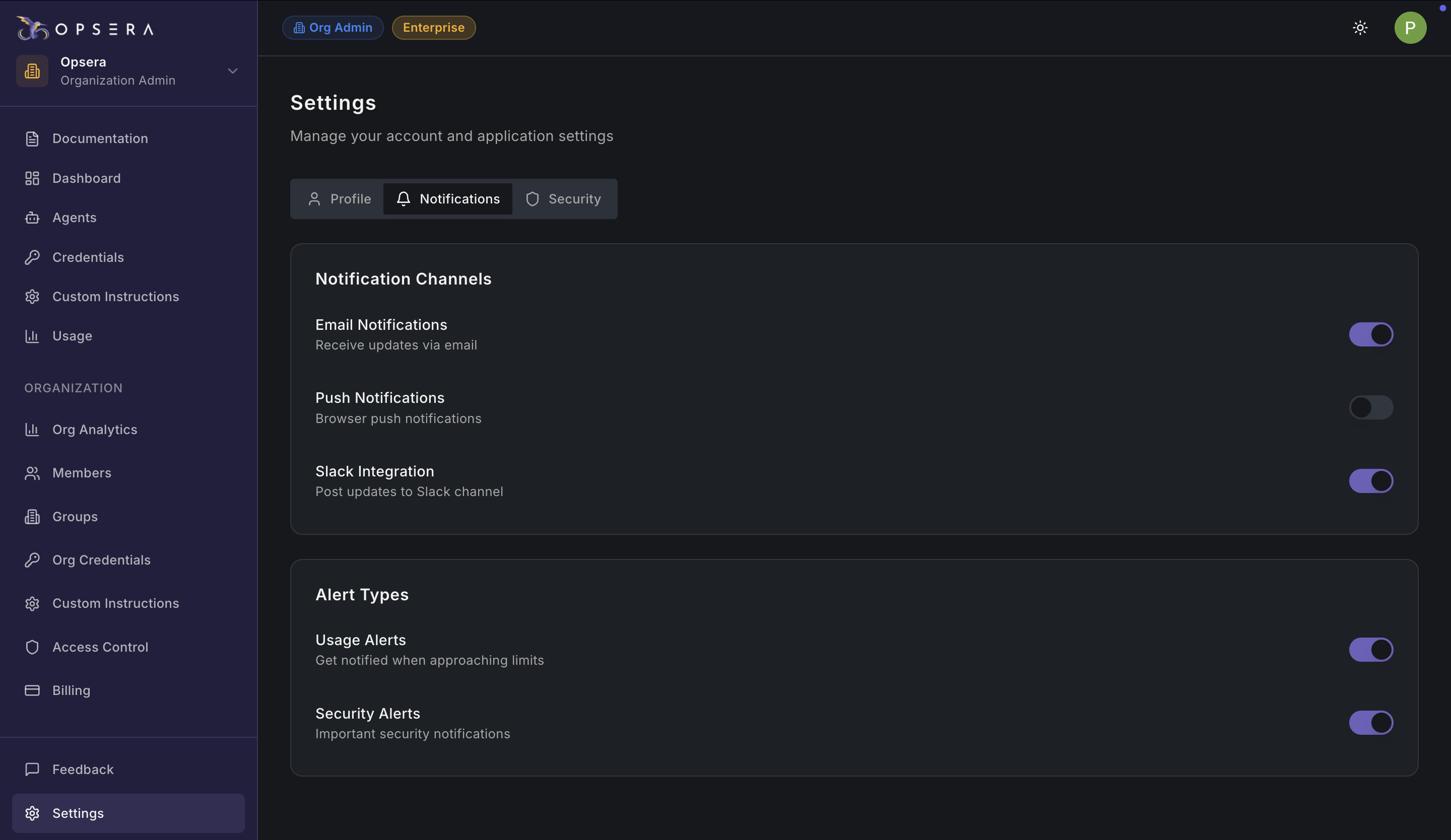
The Settings section allows users to manage personal account information, notifications, and security preferences:

* Profile Information
* Account Details

**Notifications**

Choose how you receive updates:

* **Email Notifications:** Platform updates and alerts via email
* **Push Notifications:** Browser-based notifications
* **Slack Integration:** Sends alerts to configured Slack channels

**Alert Types**

* **Usage Alerts:** Triggered when approaching usage or quota limits
* **Security Alerts:** Login issues, policy changes, suspicious activity

**Password Management**

* Update password using:
  * Current password
  * New password
  * Confirmation

**Two-Factor Authentication (2FA)**

* Adds an additional security layer
* Recommended for all users
* Required for admins if enforced by policy

**Active Sessions**

Displays:

* Current active session
* Device, browser, and location
* Session status


---

# Agent Instructions: Querying This Documentation

If you need additional information that is not directly available in this page, you can query the documentation dynamically by asking a question.

Perform an HTTP GET request on the current page URL with the `ask` query parameter:

```
GET https://docs.agents.opsera.ai/opsera-agent-portal.md?ask=<question>
```

The question should be specific, self-contained, and written in natural language.
The response will contain a direct answer to the question and relevant excerpts and sources from the documentation.

Use this mechanism when the answer is not explicitly present in the current page, you need clarification or additional context, or you want to retrieve related documentation sections.